MockVerse
Candidate User Manual
A complete, step-by-step guide to the MockVerse Candidate Dashboard
Version 2.4 | October 15, 2026
Prepared for candidates: students, fresh graduates, and job seekers
Part 1: Introduction
1.1 Signing In as a Candidate
- Open https://aideafirst.com/apps/mockverse/.
- Select the Candidate account type.
- Confirm the role card shows Candidate and Student / Job Seeker.
- Sign in using one of the following methods:
- Enter your registered email address and password, optionally keep Remember Me selected, and select LOGIN AS CANDIDATE.
- Or select LOGIN WITH GOOGLE and sign in using your Google account.
- Use Forgot Password? if you need to reset the password for your registered email address.

1.2 About MockVerse for Candidates
MockVerse helps candidates practice interviews, review AI-generated performance insights, manage resumes, respond to institution or recruiter invitations, and use two separate coaching experiences. AI Coach provides text-based preparation Q&A. Conversational MockVerse Coach provides voice-first, resume-grounded career coaching and appears as a separate navigation item only for candidates currently granted private-beta access in a Web browser. The regular candidate navigation includes Dashboard, Institution Invites, Recruiter Invites, Insights, AI Coach, and Profile, with the Conversational Coach added when eligible. New candidates can use the Guided Tour for an interactive introduction to the full Candidate Web Dashboard. It highlights important areas and explains practice, invitations, Insights, the text AI Coach, profile management, and readiness.
An institution may require proctoring for an event interview. You see its device requirements when starting an eligible invitation from Institution Invites. Ordinary self-practice follows a separate setup and is not described as offering a proctoring start option.
Proctoring records observations that help authorized institution staff review the conditions of one interview attempt. An incident is a timed observation; evidence means limited private still images linked to eligible incidents, not a continuous recording. A Trust Score is an advisory proctoring measure for that attempt. It is separate from the AI Score and readiness measures, which describe interview answers and performance. These signals support human review. An incident or Trust Score alone is not proof of cheating and does not automatically decide the AI Score, event rank, eligibility, or hiring outcome.
1.3 Subscription Plans and Practice Allowances
The current Upgrade screen displays Free, Standard, Pro, and Enterprise. A displayed plan is not necessarily available to subscribe to: Standard is currently subscribable, while Pro and Enterprise are displayed but currently unavailable for subscription.
| Plan displayed | Current self-practice allowance | Availability and session formats |
|---|---|---|
| Free | During the current 30-day Free access window, candidates receive three separate attempts for each self-practice category: 3 Micro Interviews, 3 Profile Based Interviews, and 3 Job Description Interviews. This is up to 9 self-practice interviews in total. | Each Free self-practice interview is 15 minutes. These are not daily credits and do not reset each day. |
| Standard | 150 interview minutes per billing cycle, shown as 150 min / month on the Upgrade screen. | Currently subscribable. Profile Based and Job Description sessions support 15, 30, or 45 minutes; Micro remains a 15-minute format. |
| Pro | 300 minutes/month. | Displayed, but currently unavailable for subscription. |
| Enterprise | 450 minutes/month. | Displayed, but currently unavailable for subscription. |
Paid minute-based plans do not use the Free plan’s 3/3 attempt balances. For a paid self-practice session, the selected duration is reserved and deducted only after MockVerse successfully starts the session.
| Upgrading. Open Profile (see 10.1) to review your current plan and the plans currently offered for subscription. |
Part 2: Account Creation
2.1 Creating an Account
The login card includes Register as Candidate for candidate account creation. Registration requires candidate details, password confirmation, terms acceptance. Do not create duplicate accounts when using an assigned test candidate account.
2.2 Password Reset? and Legal Links
The login page includes links to the Terms of Service, Privacy Policy, and Forgot Password?. By accessing and using MockVerse, candidates acknowledge that they have read and agree to the Terms of Service and Privacy Policy. The Forgot Password? option can be used to reset the password associated with a registered email address.
Part 3: Candidate Dashboard
3.1 Layout and Navigation
The dashboard uses a dark left sidebar and a main content area. The sidebar includes Main navigation links and a Quick Actions link for Start Practice. The bottom of the sidebar shows the signed-in candidate, current plan badge, and Hide menu. In the supported full Web dashboard, the top-right tour icon opens or replays the Guided Tour.
- Dashboard: readiness, interview count, invitations, day streak, skill snapshot, and recent activity.
- Institution Invites: institution event invitations assigned to the candidate account, including any required proctored start. There is no separate candidate proctoring sidebar page.
- Recruiter Invites: recruiter or staffing agency invitations; currently treated as beta/under testing.
- Insights: skill snapshot, trend chart, and interview history.
- AI Coach: text-based, resume-aware preparation Q&A.
- Conversational MockVerse Coach: voice-first, resume-grounded coaching. This separate item appears only for candidates granted Web private-beta access.
- Profile: account settings, voice, resumes, feedback, referrals, and subscription status.
3.2 Home Metrics
The Dashboard hero greets the candidate and provides Start Practice Session. The metric cards show Overall Readiness, Total Interviews, Invitations, and Day Streak. The Overall Readiness panel reflects readiness derived from available AI analysis for completed candidate interviews. Free-plan summaries can also show a category balance such as Micro 3/3 Left.
3.3 Guided Tour
The Guided Tour, also called the Candidate Tour, is an interactive introduction to the Candidate Dashboard. It places a dark overlay over the dashboard, highlights the relevant control or area, and shows a tour card explaining what to do. The current tour contains eight steps. Its header uses progress such as Candidate tour · 1/8, with a progress bar and selectable progress dots. The page may scroll or reposition automatically to keep the highlighted area and explanation visible.

| Supported experience. The Guided Tour is currently part of the full Candidate Dashboard experience. It is not documented as available in the dedicated phone/native/mobile Candidate shell. |
3.3.1 Starting the Guided Tour
The tour opens automatically for an eligible candidate who has not completed or dismissed the current major tour version. It waits until the Candidate Dashboard and required interface elements are ready, but checking the preference does not block the dashboard from loading. The automatic choice is associated with the signed-in candidate account; the tour does not open after every login.
3.3.2 What the Eight Steps Cover
- Welcome to MockVerse: introduces MockVerse as an AI-powered interview-practice space and summarizes practice, events, insights, and continuous improvement.
- Practice an interview: highlights Start Practice Session; covers Micro, Profile Based, and Job Description practice; and mentions microphone access, the AI interviewer, and reviewing results after finishing.
- Join institution and recruiter events: points to the invitation sections and explains event windows, duration, attempt limits, and organiser instructions. Event attempts follow limits set by the organiser. Read an institution event’s proctoring requirements before starting.
- See your Insights: introduces skill snapshots, readiness movement, scores, interview history, and AI analysis.
- Use the AI Coach: introduces the existing text-based AI Coach for answer preparation without starting a complete mock interview. This step does not refer to the separate Conversational MockVerse Coach.
- Manage your profile: introduces resumes, voice preferences, account settings, feedback, and available plan or upgrade controls.
- Understand the Readiness score: explains that headline readiness is aggregated from interview history and confirmed AI score summaries, and becomes more useful as more practice is completed.
- You are ready to go: summarizes the practice → events → insights → coaching loop. Select Start practicing to close the tour and open Start Practice.
3.3.3 Tour Controls
- Next: advances to the next step.
- Back: returns to the previous step and is disabled on the first step.
- Progress dots: show the position in the eight-step tour and allow direct movement to another step.
- Skip: ends an automatic tour and prevents the current version from launching automatically again.
- Don’t show this again: ends the tour and disables automatic launch for the current version.
- Close icon: the X closes the tour.
- Escape key: closes the tour on supported desktop browsers.
- Start practicing: appears on the final step and opens Start Practice.
3.3.4 Replaying or Disabling the Tour
Completing, skipping, closing, or selecting Don’t show this again during an automatic run prevents the current tour version from launching automatically again. This choice belongs to the signed-in candidate account and can be respected in later sessions and on supported devices. MockVerse also keeps a safe local fallback so a preference-loading problem does not block the dashboard.
- Open the Candidate Dashboard in the full Web dashboard experience.
- Locate the tour-shaped icon in the top-right dashboard header.
- Hover over it to confirm the tooltip reads Replay walkthrough.
- Select the icon to restart the Candidate Tour from Welcome to MockVerse.
Manual replay remains available after the tour was completed, skipped, closed, or disabled. Replaying does not turn automatic launch back on, and closing a manually replayed tour does not change the saved automatic-display choice. Only one tour can be active at a time.
3.3.5 Troubleshooting
- If a dashboard item is temporarily unavailable, the tour safely skips that step instead of remaining frozen.
- If the tour does not open automatically, it may already have been completed or dismissed. Use Replay walkthrough.
- If the replay icon is not visible, confirm that you are using the supported full Candidate Web Dashboard rather than the phone/mobile shell.
- Closing and replaying the tour does not affect interview history, credits, profile information, or subscription state.
Part 4: Start Practice
4.1 Opening Start Practice
Open Start Practice from either the dashboard hero button Start Practice Session or the sidebar quick action Start Practice. The final step of the Guided Tour also opens Start Practice through Start practicing. The setup page is titled Start a Mock Interview and asks, How would you like to setup your interview ?

4.2 Interview Initiation Modes
| Self-practice category | Free balance | Current duration |
|---|---|---|
| Micro Interviews | Starts at 3/3 Left | 15 minutes |
| Profile Based Interviews | Starts at 3/3 Left | 15 minutes |
| Job Description Interviews | Starts at 3/3 Left | 15 minutes |
| Free balances are separate. A new balance appears as 3/3 Left for each practice type and decreases only for the category successfully started. For example, starting a Profile Based Interview changes only the Profile balance. Institution-event attempts remain separate and do not use the Micro self-practice balance. |
Opening or filling the setup page does not use an attempt. An attempt is used after MockVerse successfully starts the interview session. If the session cannot be created, the attempt is not deducted. After a session successfully starts, leaving or abandoning it does not restore the attempt. Your displayed balances are maintained by MockVerse for your account.
4.3 Micro Interviews
Select Micro Interviews. The selected card turns red and the setup continues with a 15-minute micro interview configuration using Micro Interview as the interview round.

4.4 Profile Based Interviews
Select Profile Based Interviews. Choose an active resume when available, upload a resume if needed, and complete the profile fields: Highest Qualification, Years of Relevant Experience, Current or Recent Role, Target Role, and Skills.

4.5 Job Descriptions
Select Job Descriptions. Paste the target job description into the Job Description panel. The app validates the description before allowing the candidate to proceed to interview type, duration, and the start action.

4.6 Interview Type and Duration
For non-micro practice, candidates choose an interview type from the configured rounds: Recruiter Round, Screening Interview, Technical Interview, Design Interview, Managerial Interview, and Final Interview. Duration options are 15, 30, and 45 minutes, with 15 minutes as the default. The start button reads Start Mock Interview or Start Micro Interview depending on the selected mode.
4.7 Understanding Score Scales
MockVerse uses two score conventions in candidate-facing workflows:
| Workflow | Score convention | Where candidates see it |
|---|---|---|
| Self-practice interviews | 0-10 AI score, often shown with one decimal place. | Dashboard readiness cards, Recent Activity, and Insights history. |
| Institution or event interviews | Event-level summaries may be shown as 0-100 readiness or event metrics, depending on the institution event report. | Institution event results and shared event reports when enabled by the institution. |
| Tip. A dashboard readiness percentage is an aggregate readiness indicator. It is not the same thing as a single interview score. |
Part 5: Institution and Event Invites
5.1 Where Invites Appear
Institution event invitations appear under Institution Invites. The page explains: Track institution events assigned to you and start them when the event window opens. Candidates can search events, filter by Date Range, and use status chips: All, Upcoming, Active, Completed, and Cancelled.

5.2 Invitation Card and Details
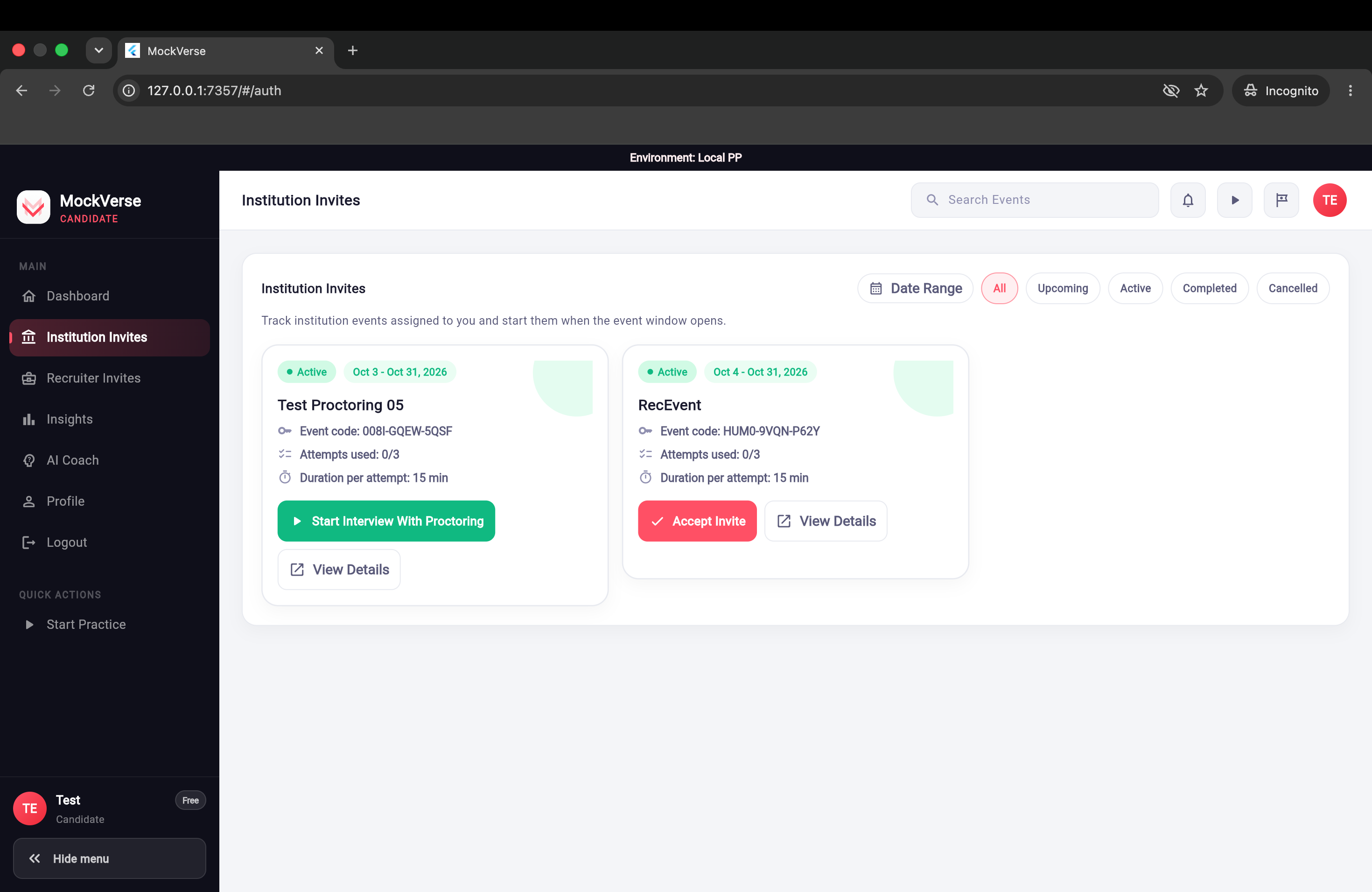
An institution invite card can show the event title, event code, attempts used, duration per attempt, lifecycle status, and a View Details action. If the invite is active and startable, the primary action is Start Interview for a non-proctored event or Start Interview With Proctoring when proctoring is required. If it is completed or cancelled, the card reflects that status and starting is unavailable.
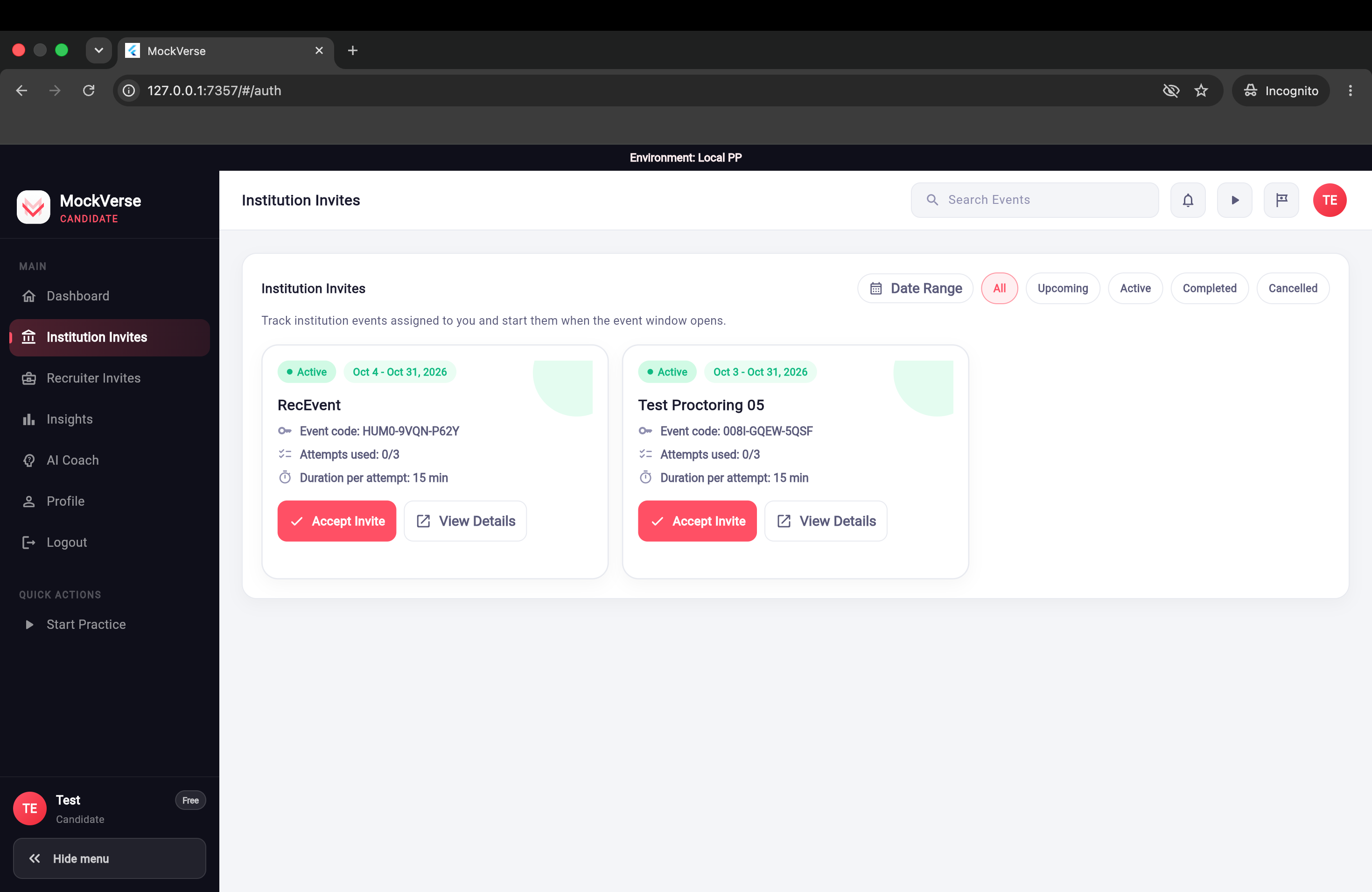

5.3 Accepting, Joining, and Results
- Open Institution Invites.
- Review the invite card and select View Details when more context is needed.
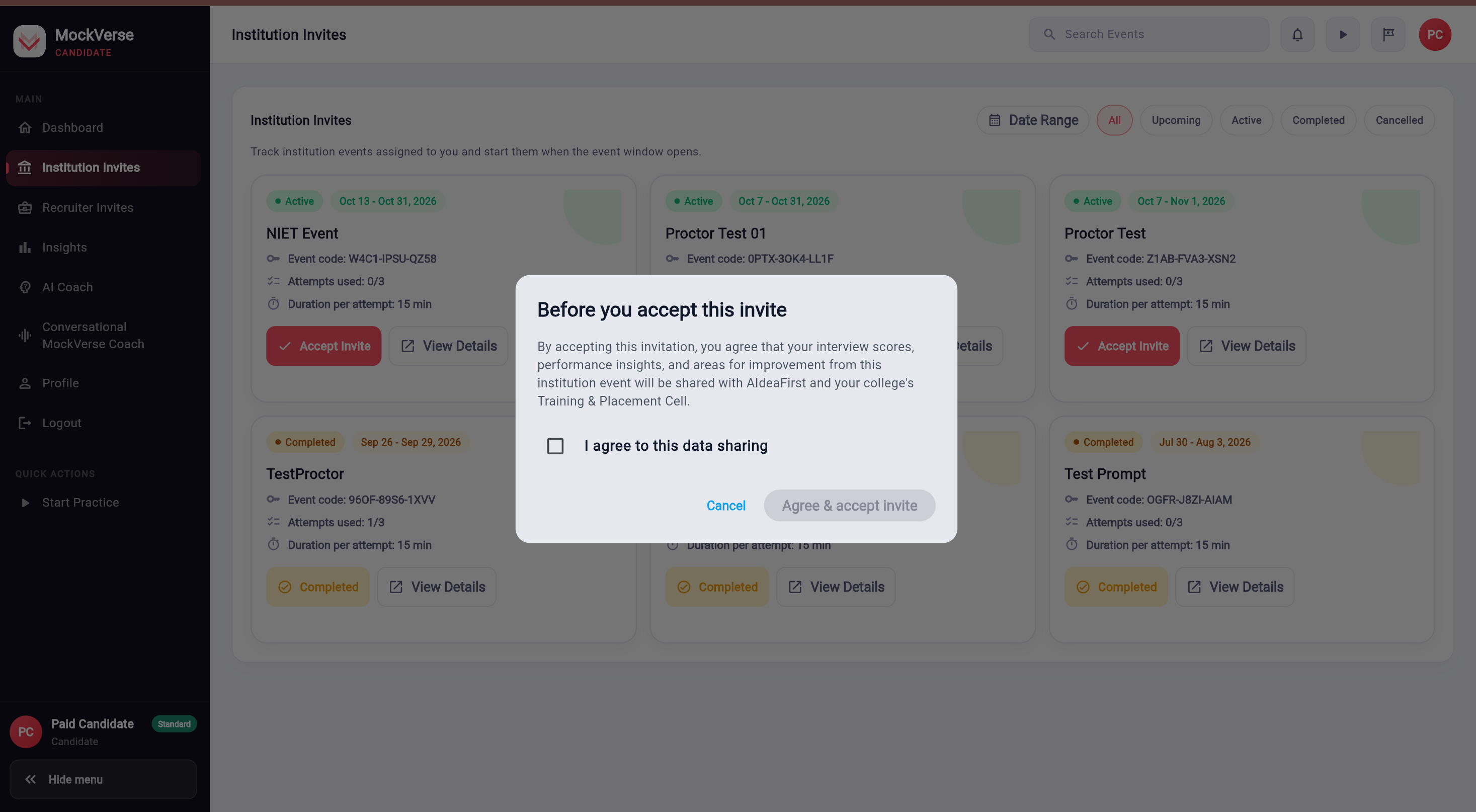
- If the invite is pending and actionable, select Accept Invite, review the data-sharing disclosure, and explicitly agree before accepting.
- When the event lifecycle is active and attempts remain, select the start action shown on the card. A proctored event uses Start Interview With Proctoring.
- After completion, results appear in the candidate’s interview history only when the event allows candidate visibility.
5.3.1 Data Sharing Consent Before Acceptance
Accept Invite opens Before you accept this invite for an institution event. The disclosure says that interview scores, performance insights, and areas for improvement from this institution event will be shared with AIdeaFirst and your college’s Training & Placement Cell. It does not describe unrelated self-practice or recruiter interviews.
Select I agree to this data sharing to enable Agree & accept invite. The agreement checkbox starts clear. Select Cancel if you do not agree; the invitation stays pending and no interview starts. You can return to the invitation later. Accepting records your agreement for that invitation; it does not start or use an interview attempt.
| Event access rule. Event results and analysis appear only when the institution has enabled candidate access. Otherwise, MockVerse may show that the event is institution-managed without displaying the analysis. |
5.4 Recognizing a Proctored Invitation
An accepted, eligible institution invitation can show Start Interview With Proctoring. The institution decides whether the event requires proctoring; a required event has no ordinary unproctored start alternative. The existing event window, acceptance rules, and attempt limit still apply. Proctoring is reached through Institution Invites, not through Start Practice or a separate sidebar item.
Use the supported browser and device described in the start notice. The additional live second-eyes experience described below is a desktop Web feature. Do not rely on a native mobile app for it. If your device or browser lacks a required capability, use a supported desktop browser or contact the event organizer.
5.5 Before Starting: Notice, Consent, and Device Checks
- After accepting the invitation and its data-sharing disclosure, open Institution Invites, review the event and its remaining attempts, then select Start Interview With Proctoring.
- Read Proctoring is required for this event. The notice identifies whether camera, microphone, or both are required. It may also require a screen/tab capability check.
- Read what can be observed and stored. Browser camera checks can record face-in-frame or possible additional-person observations. Relevant still images may be stored privately. Browser visibility, focus, and clipboard paste metadata can be recorded; pasted text is not stored. A screen/tab capability check is not screen recording. Proctoring adds no continuous video or audio recording.
- Select the displayed Allow … & continue action and grant the browser permissions. The spoken interview still requires microphone access for your answers even if the event did not select microphone proctoring.
- MockVerse checks device readiness and starts the interview with a proctoring session linked to that attempt.
The proctoring notice is a separate decision from the earlier invitation data-sharing agreement. It appears before device permissions and interview entry. Its action names the required devices, for example Allow camera and microphone & continue when both are required. Select Cancel to return to invitations without starting or using an attempt.
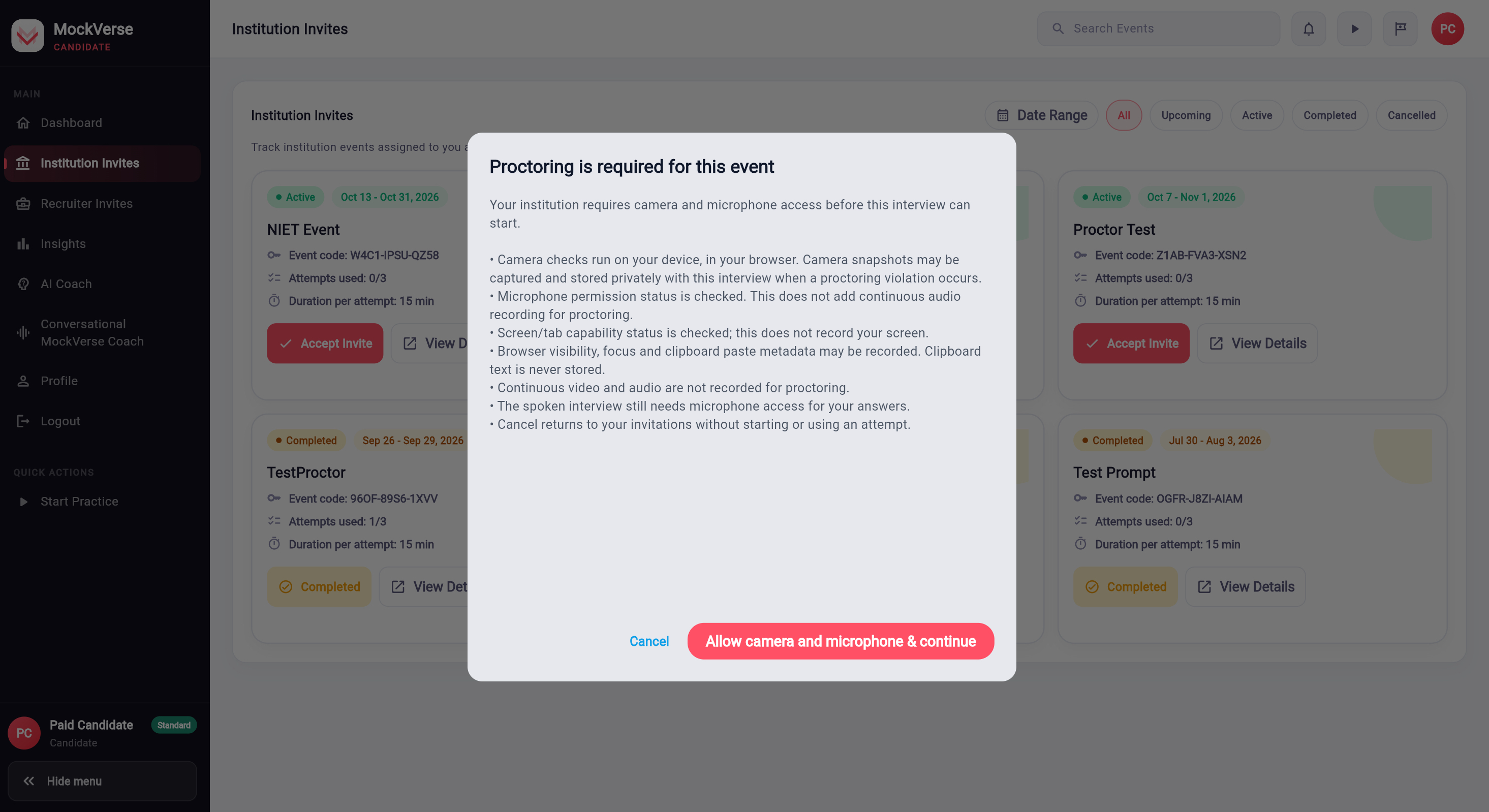
| Before an attempt starts. Cancel returns to invitations without starting an interview or using an attempt. A required camera or microphone readiness failure stops entry. Correct the browser permission, connect a camera or microphone, close another app using the device, and retry. An attempt is used only after the interview successfully starts. |
Some eligible camera events also disclose additional server visual review. This can send limited extra still snapshots to a server model for a second assessment. Those images are retained privately under the proctoring evidence policy and can be reviewed by authorized institution staff. The assessment may be uncertain or unavailable; it does not automatically alter the score or create a confirmed incident.
5.6 During the Interview
The desktop interview shows a live camera preview and status area near the interview heading, second-eyes status, and timer without covering the interview controls. Keep your face visible, use adequate lighting, and continue answering normally.
| Displayed state | What to understand or do |
|---|---|
| Face detected | The original browser camera check currently sees a face pattern. |
| No face detected — stay in frame | Return to the camera view; check position and lighting. |
| Multiple faces detected | Where possible, remove other visible people from the camera view. |
| Checking camera… / Camera check unavailable | The check is initializing or lacks a usable signal. Check camera permission and connection if this persists. |
| Second-eyes check: Person context observed / Possible additional person / Camera check uncertain / No face pattern observed | These are additional visual observations, not proof of identity, liveness, or misconduct. |
| Camera review pending | An eligible snapshot is waiting for additional assessment. |
The original browser face observation and the desktop browser second-eyes check use different checks, so their labels can temporarily differ. This live browser status is separate from any later server visual review of a stored still image. A pet, toy, photograph, difficult lighting, or partial view can make a result uncertain. Neither check can see outside the camera frame or reliably establish that an image depicts a live person.
Switching tabs or losing browser focus can be recorded as an event. A tab switch is a review signal, not an automatic Trust Score penalty. Stay on the interview page unless you have a legitimate reason to leave it.
5.7 If Something Goes Wrong
| Situation | What happens and what to do |
|---|---|
| Invitation data sharing not agreed | Selecting Cancel or leaving the checkbox clear does not accept the institution invitation. Return to the pending invite if you want to review it again. |
| Proctoring notice cancelled | Entry stops and returns to the accepted invitation. No attempt is used before the interview starts. |
| Camera permission denied | If camera is required, entry stops. Allow access in browser settings and retry. |
| No camera or camera already in use | Connect a camera or close another app using it, then retry the readiness check. |
| Microphone permission or readiness failure | Grant microphone access, choose a working input, and retry. The spoken interview needs a working microphone. |
| Detector unavailable before entry | If a required check cannot initialize, correct the device or browser issue and retry; use the displayed error guidance. |
| Camera check unavailable during an active interview | Check the camera connection and permission while continuing if the interview remains open. A monitoring gap is recorded and handled under the event failure policy, not silently treated as misconduct. |
| Browser refresh or unexpected exit | Return to Institution Invites. Resume only if the event enables Allow Resume After Unexpected Exit, the event remains eligible, and MockVerse offers a resume action; otherwise follow the displayed attempt state or contact the organizer. |
| Evidence upload delayed or failed | Continue the interview if it remains active. Authorized reviewers may later see evidence as pending or failed; an upload failure alone is not proof of misconduct. |
5.8 After the Interview and Privacy
The attempt and its AI analysis follow the normal institution-event flow. Your access to the interview performance report still depends on Share Interview Insights with Candidates. That setting does not automatically share private proctoring evidence or the Placement Officer’s Proctoring Report with you.
Stored still images follow the published proctoring evidence retention policy and are deleted when that period expires. Account erasure or an applicable deletion request triggers the evidence purge and related proctoring-record treatment under that policy.
Proctoring signals support human review. An incident or Trust Score alone does not prove cheating or determine an AI Score, event rank, candidate eligibility, or hiring decision.
Part 6: Recruiter Invites
| Beta: coming soon / under testing. Recruiter and agency invitations are present in the candidate sidebar, but should be treated as a beta surface until generally available. |
The Recruiter Invites page states that recruiter and agency interview invites assigned to the candidate will appear there. Candidates may see an empty state when no recruiter invitations are assigned or when search text does not match any invite.

Part 7: Insights
7.1 Opening Insights
Select Insights from the sidebar. The page banner says Track your skills and interview history and explains that charts and rows are generated from the candidate’s interview history and confirmed analysis summaries when available.

Insights primarily describe interview performance. AI Score and readiness measure answers and performance; an institution’s Trust Score is a separate advisory proctoring assessment for an event attempt. The current candidate Insights flow does not imply access to the officer’s private evidence or Trust Report.
7.2 Filters and Review
The Insights table can be filtered using All, My Interviews, and Event Interviews. For each history row, candidates can review the interview details when analysis is available to them. Self-practice interviews are always candidate-owned and visible to the candidate. Event interviews are visible to the candidate only when the institution or recruiter has enabled sharing for that event or report.
| Tier scope. Free Tier candidates see high-level insights here. Standard Tier candidates get detailed insights covering the same interview history. See 1.3. |
Part 8: AI Coach
8.1 Asking the Coach
Select AI Coach for the existing text-based preparation experience. The embedded coach says: Ask interview questions, sharpen answers, or use your resume context without starting a practice session. Enter a question such as How should I answer "Tell me about yourself"? and select Get Best Answer. This is separate from the voice-first Conversational MockVerse Coach described in Part 9.

8.2 Resume Context
The AI Coach automatically looks for an active resume. Candidates can use Change Resume, Select Existing Resume, Upload Resume, or Remove Selection depending on resume state. When a resume is selected, the coach sends resume content with the question so the answer can be tailored to the candidate’s background.
Part 9: Conversational MockVerse Coach
9.1 What It Is and Who Can Access It
Conversational MockVerse Coach is a voice-first, resume-grounded career coach. It is designed for coaching and preparation, not as a replacement for Mock Interviews, and it does not conduct a full interview. If asked to conduct an interview, it redirects the conversation toward preparation and coaching.
| Private beta. The Coach is available only in Web browser experiences when access has been granted to the candidate. It is not an automatic benefit of any subscription plan, it is hidden on native Android and iOS, and access should not be assumed for every candidate. |
9.2 Selecting a Resume and Coaching Context
A successfully prepared, active uploaded resume is required. Under Choose your coaching context, the selector offers only active resumes, shows each resume name with · Active, and lists the most recently updated resume first. The first available active resume is preselected. Select a different active resume to change the candidate context used for a new conversation.
Select Manage resumes to open Resume Management. When a conversation starts, MockVerse confirms that the selected resume belongs to the signed-in candidate, is active, is available, and can be read. If it cannot be used, manage the resume or choose another active resume.

9.3 Starting and Using a Voice Conversation
- Open Conversational MockVerse Coach from Candidate navigation.
- Under Choose your coaching context, select an active resume.
- Select Start Conversation.
- The Coach generates and speaks a resume-grounded greeting.
- Allow microphone access when the browser asks; listening then begins.
- Speak naturally and select Done speaking to finalize and submit the spoken turn.
- Your transcript appears in the conversation, and the Coach generates and plays its spoken response.
- Listening resumes for the next turn.
The available controls are Start Conversation, Done speaking, Interrupt and respond, Start listening, Play response, and End conversation. Status messages can include Conversation ready, Coach is speaking, Connecting microphone, Listening to you, Finishing transcript, Coach is thinking, and Voice needs attention.
9.4 Coaching Topics and Current Limits
Use the Coach for career guidance, resume review, behavioral or HR interview preparation, technical interview preparation, system-design discussion, salary negotiation, offer evaluation, career transition, communication improvement, leadership coaching, and preparing Tell me about yourself.
One active coaching conversation is allowed at a time. If one already exists, choose Continue conversation or End and start new. The current default limit is 30 minutes and 40 candidate turns per session.
9.5 Conversation History, Transcripts, and AI Memory
Only ended or expired sessions appear in Conversation History. History loads 20 sessions at a time and can show Load more conversations. A history card can show the conversation title or topic, date, duration, turn count, selected resume, and a preview of the last message.
Open a previous conversation to view its read-only transcript or download it as a PDF. A completed transcript cannot be continued. It is kept for your reference only and is never loaded as memory into a future coaching session. Within a current active conversation, the Coach uses recent turns from that same conversation for continuity; by default, up to the latest 12 completed turns are used. Do not expect completed conversations to become cross-session memory.
Conversation History cannot be opened while a conversation is active. End the active conversation first. When there are no completed sessions, the empty state explains that completed coaching conversations will appear there.
9.6 Empty States and Troubleshooting
- Microphone permission blocked: allow microphone access in browser settings, then retry.
- No clear speech detected: speak again in a quieter setting and select Done speaking when finished.
- Audio autoplay blocked: select Play response.
- Network or voice connection ended: check the connection and select Start listening again.
- Resume missing, inactive, or unreadable: open Resume Management or choose another active resume.
- History unavailable during a live session: end the active conversation before opening Conversation History.
Part 10: Profile and Settings
10.1 Profile Overview
Select Profile to view profile metrics, subscription status, and account setting actions. The current profile page shows Account Details, AI Voice Preference, My Resumes, Feedback, and Refer Your Friend.

10.2 AI Voice Preference
Open AI Voice Preference to choose interviewer voice, locale, and playback style. Return to Profile with the back arrow after updating voice preferences.

10.3 Resume Management
Open My Resumes to upload, activate, preview, or delete resumes. Upload supports .pdf, .doc, and .docx files with a maximum size of 5 MB. Each saved resume can be marked Active or Inactive. Active resumes can be used by Profile Based practice, the text AI Coach, and—when private-beta access is granted—the Conversational MockVerse Coach.

10.4 Feedback and Optional Coupon/Promo Code
Open Profile & Settings and select Feedback. The candidate screen includes sample constructive feedback, a required Your Feedback field limited to 1000 characters, and Submit Feedback. After a successful submission, MockVerse shows Thank you for your feedback!
In the Web Desktop feedback experience, Coupon/Promo code is an optional field limited to 64 characters. Leave it blank for ordinary product feedback. Enter a code only when the feedback relates to a coupon, offer, payment discount, or subscription issue. MockVerse removes extra spaces at the beginning or end and submits the code in uppercase. A code cannot replace the feedback message; feedback text is still required.
| This is not instant redemption. Submitting a code records it with the feedback for administrator review. It does not validate, redeem, or automatically apply the code, and it does not immediately grant a discount or subscription. Campaign review is administrator-controlled and can consider the campaign validity window, participant limit, and unique candidate email. An administrator must separately review and execute any grant, so entering a code does not guarantee eligibility or a benefit. |

10.5 Refer Your Friend
Open Refer Your Friend to send referral invitations. Enter one or more email addresses in Friend email(s), separated by commas, spaces, or new lines. The current dialog allows up to 5 invites at a time and sends them with Send invitations.

Part 11: Screenshot Inventory
| Figure | Screen |
|---|---|
| 1 | Candidate login screen with Candidate account type selected. |
| 2 | Candidate Guided Tour welcome step showing the 1-of-8 progress indicator, dashboard overlay, and tour controls. |
| 3 | Start Practice overview showing separate 3/3 Left balances for Micro, Profile Based, and Job Description interviews. |
| 4 | Micro Interview setup with the selected practice card, 3/3 Left balance, duration controls, and start action. |
| 5 | Profile Based Interview setup showing the selected practice card, 3/3 Left balance, resume selector, and profile details. |
| 6 | Job Description Interview setup showing the selected practice card, 3/3 Left balance, job description panel, and start action. |
| 7 | Institution Invites page showing a completed event card. |
| 8 | Test proctored institution invitation before acceptance. |
| 9 | Institution invite details dialog with attempts, interview type, duration, and event dates. |
| 10 | Institution invitation data-sharing agreement before acceptance. |
| 11 | Accepted test event showing Start Interview With Proctoring. |
| 12 | Required proctoring notice before camera and microphone permission. |
| 13 | Recruiter Invites beta surface with the current empty state. |
| 14 | Insights page showing the skill snapshot, readiness trend, and recent interview history for a test candidate. |
| 15 | Text-based AI Coach showing resume options and the interview-preparation chat area. |
| 16 | Conversational MockVerse Coach setup showing the resume-required state and Conversation History reference-only notice. |
| 17 | Profile and Settings page showing the Yash test candidate, subscription status, and account settings. |
| 18 | AI Voice Preference settings screen. |
| 19 | Manage Resumes screen showing resume naming, file selection, upload controls, and the resume list area. |
| 20 | Feedback page showing the required feedback message, optional Coupon/Promo code field, explanatory text, and Submit Feedback action. |
| 21 | Refer Your Friend dialog with a five-recipient batch limit. |
Additional final-build captures are still needed for the browser permission step, live camera/status area, and an uncertainty or device-error state.